ImageCompat

Upload guidance

How to crop a LinkedIn photo preview

Preview how a LinkedIn profile photo may crop into a circle, including square framing, edge risk, and image clarity before upload.

Check an imageImages never leave your device.

What this checks

  • Square source
  • Circular crop
  • Corner risk
LinkedIn profile photos often appear as circles, so faces and logos need safe margin away from the corners.
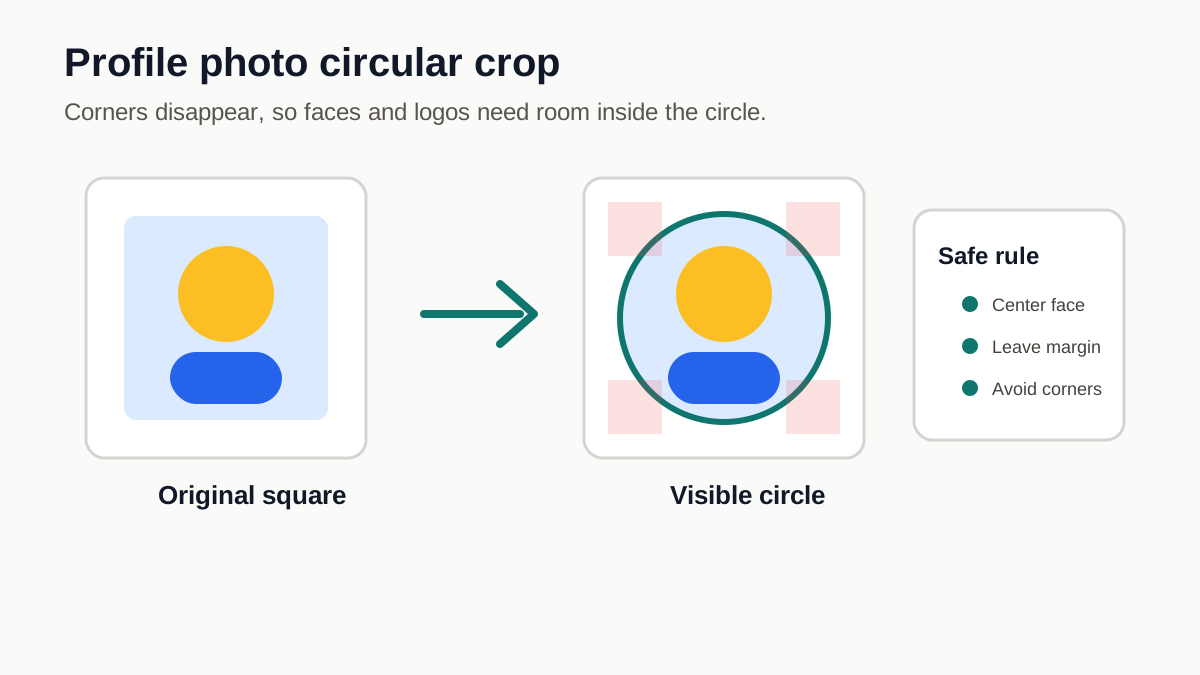
LinkedIn profile photo crop example showing a square image becoming a circular crop with corners removed.

Profile photos become circles

To crop a LinkedIn photo safely, start with a square image and keep the face, logo, or main subject near the center. LinkedIn often displays profile photos inside a circle, so corners can disappear and subjects near the edge can feel crowded. For the wide image behind your profile, see why LinkedIn banners crop on mobile.

Keep the subject centered

Faces, logos, and important details should sit near the middle with some room around them. This makes the image more dependable in feeds, search, and profile cards.

Use a simple pre-check

Before uploading, check that the image is square, large enough, and not relying on corner details that may be cropped away. If you are updating your whole profile, also use the LinkedIn banner checker to preview desktop framing, mobile crop risk, and avatar overlap.